Install Polystro and open your first workstream.
The installation flow is short, but the important part is understanding what Polystro attaches to a workstream once you open a repo: sessions, routes, browser identities, services, previews, and isolated agent execution.
Before You Install
Polystro is a desktop app for macOS, Windows, and Linux. You should have a local Git repository ready and, if you want to run agents immediately, at least one supported coding CLI installed.
Supported platforms
Polystro is built for macOS, Windows, and Linux.
Repository required
A workstream starts from a local Git repository. Polystro validates the path when you create one.
Supported CLIs
The desktop app detects Claude Code, Codex CLI, Cursor CLI, Gemini CLI, OpenCode, Kimi Code, Muse Code, Grok Build, and Antigravity CLI.
Bring your own auth
Provider access depends on the CLI you use. Polystro can also store API key overrides in Settings when needed.
What installation gives you
Install and Sign In
Download the desktop app from your account page, install it for your platform, and launch it. On first run, sign in and activate your license on the current machine.
Polystro uses a desktop license flow rather than a browser-only workspace model. That matters because the app stays anchored to your local machine, where it can manage repos, terminals, worktrees, previews, and browser partitions directly.
Update behavior
Platform Notes
macOS
Install the desktop build, open it from Applications, and confirm your CLI tooling is available from the same machine-level shell environment you normally use.
Windows
Install the desktop build, then verify the repo path and CLI executables resolve in the same Windows environment where you normally run them.
Linux
Use the provided package for your distro or AppImage path, then confirm the shell environment and repo permissions match your normal local setup.
Upgrades and re-installs
Polystro keeps the workstream model and settings intact across normal upgrades, so most users should update in place rather than re-create workstreams.
Open Your First Workstream
Create a workstream by choosing a name and pointing Polystro at an existing Git repository. The app validates that the path exists and that it is a real repo before creating the workstream.
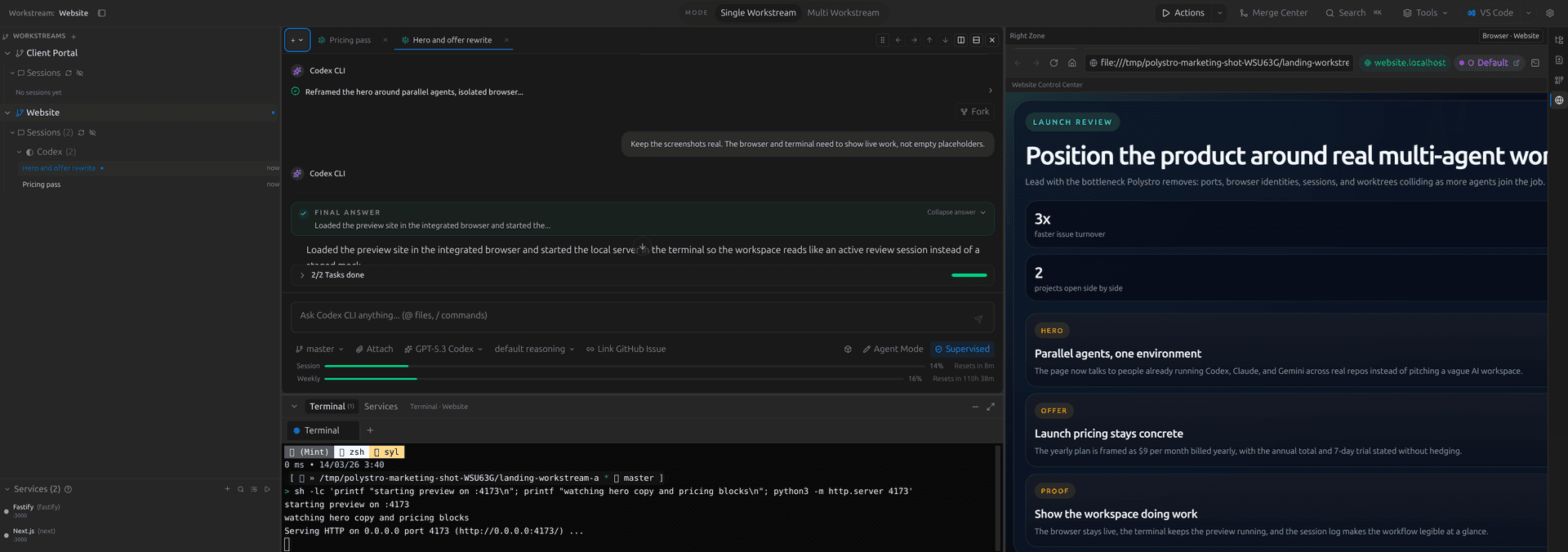
After creation, the workstream appears in the sidebar. From there you can switch between single-workstream and multi-workstream views, reorder workstreams, hide ones you are not using, or open several at once in the larger shell.
Start Services and Preview
If your repo includes local services, Polystro can scan them, start them in the correct workspace context, and route them behind stable local hostnames instead of making you chase changing ports.
In practice, that means a frontend, API, database, and preview can all stay attached to the workstream. When ports move under the hood, Polystro keeps the workstream hostname stable and rewrites routing instead of asking you to relearn a new local URL.
Why this matters
Launch Your First Session
Open a session tab for one of the detected CLIs and send your first prompt. The composer lets you switch model, reasoning mode, workspace target, branch/worktree behavior, and permission mode from the footer.
The default supervised mode is designed for local agent execution that may need approval for sensitive actions. If you prefer a looser mode for a session, you can switch to skip-permissions where that CLI supports it.
Sessions are grouped by CLI in the sidebar and can be resumed, renamed, archived, or reopened in multiple tabs depending on how you work.
First-Run Troubleshooting
CLI not detected
Check the Agents settings tab first. If the CLI does not work in your normal shell, fix that before expecting the desktop app to use it.
Repo path rejected
Confirm you selected the repository root and not a parent folder or a non-Git directory.
Preview does not load
Check whether services were scanned and started, then inspect service logs before assuming the browser surface is the problem.
Unexpected auth state
Review the current browser identity mode and the CLI/provider auth setup before debugging deeper session behavior.
What Happens Next
Once your first workstream is running, the rest of the product makes more sense: browser identity isolation, worktree isolation, planning, review, automations, and remote continuation all build on the same workstream model.
Understand the workstream model
See how stable hostnames, browser identity modes, terminals, and worktrees stay attached to one unit of work.
Learn the core workflows
Sessions, planning, ideation, review, and merge all sit on top of the workstream shell.
See browser and service behavior
Learn how routed previews, stable hostnames, integrated browser identities, and service launching work.
Configure your CLIs and auth
Understand supported CLIs, API key overrides, model defaults, and first-run auth expectations.
Understand support and license recovery
See update checks, bug reports, renewal flows, and what to do when a device limit or license state blocks entry.
If you want the product model before the workflow details, continue to Workstreams and Isolation.